
Overview
There are two ways to live-stream from your Clutch Cams:
- Quick method — one click from the Clutch dashboard. Best for everyday club livestreams.
- Advanced method — route the camera through OBS Studio when you want overlays, scoreboards, logos and live commentary.
Both methods use the same Clutch Cam — pick the one that fits the moment.
Quick method — one-click streaming
If you just need to put a court live — no overlays, no commentary — this is the fastest path.
- Open the streaming tab in the Clutch dashboard: dashboard.clutchapp.io/camera?tab=streaming
- Pick the camera / court you want to stream.
- Hit Start streaming, then share the live link with your players or post it to your channels. That's it.
Need overlays, team scores or commentary? Use the advanced flow below.
Advanced — scoreboards & live commentary (OBS)
Use this when you want team scoreboards, club branding, logos or a commentator's mic on top of the camera feed. We route the Clutch Cam through OBS Studio and broadcast to YouTube (or your platform of choice).
What you'll need
- OBS Studio (free) installed on a laptop or PC
- A YouTube / Twitch / Facebook account with live-streaming enabled
- A microphone if you want live commentary (optional)
- Your Clutch Cam mounted and online
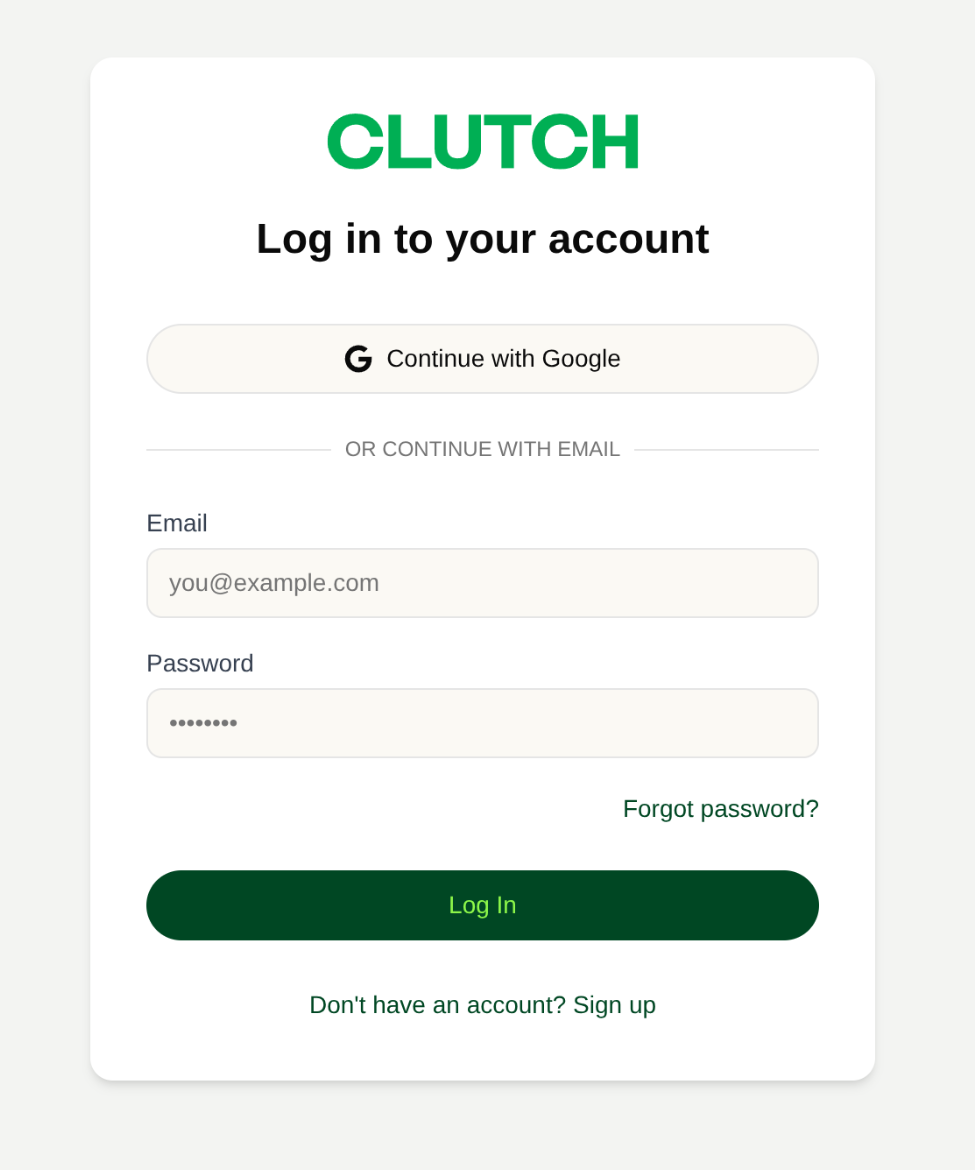
Step 1 · Log in to the Clutch dashboard
Head to dashboard.clutchapp.io/dashboard and sign in with the account linked to your club.
Step 2 · Get your RTMPS URL
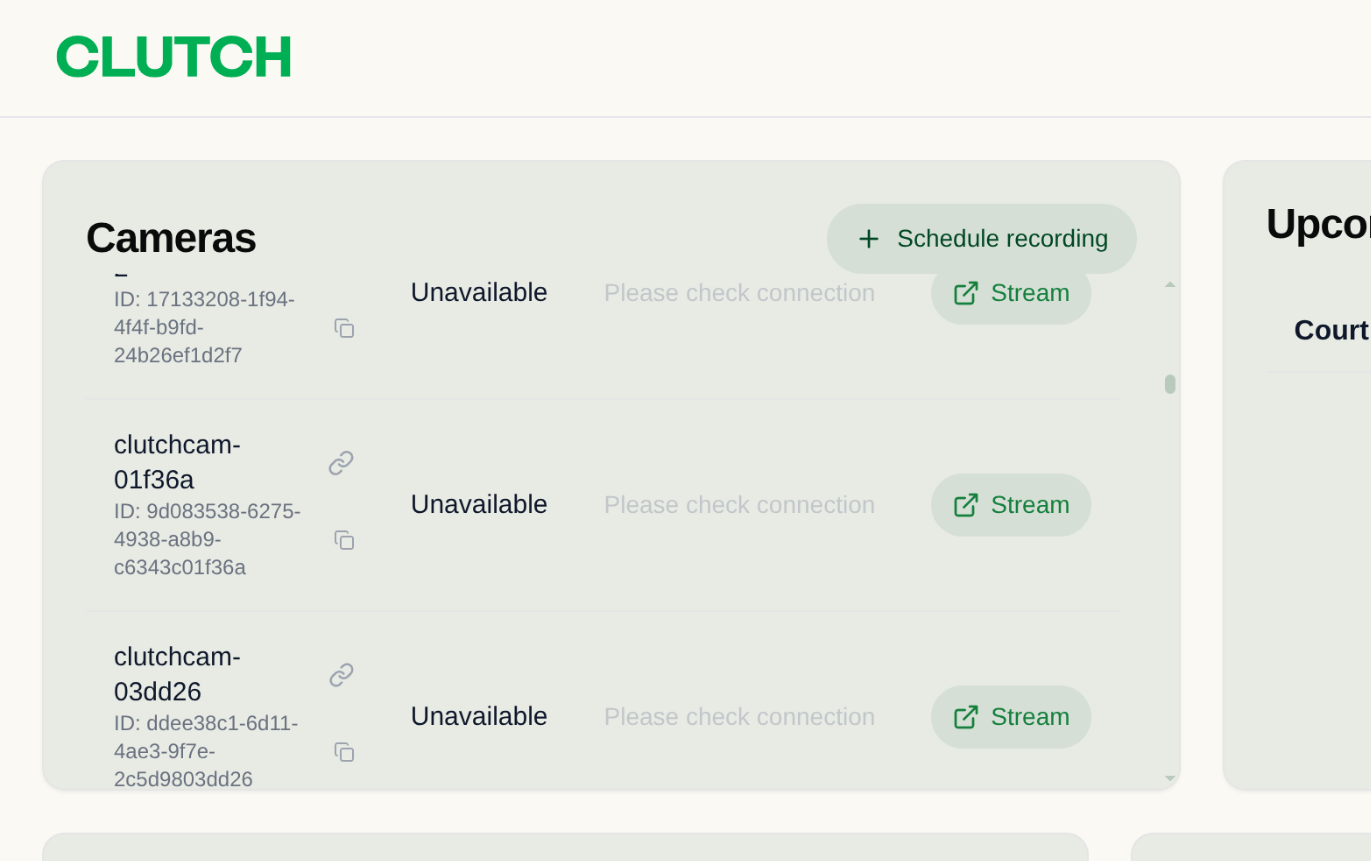
In the Cameras list, find the camera you want to stream from and click Stream.
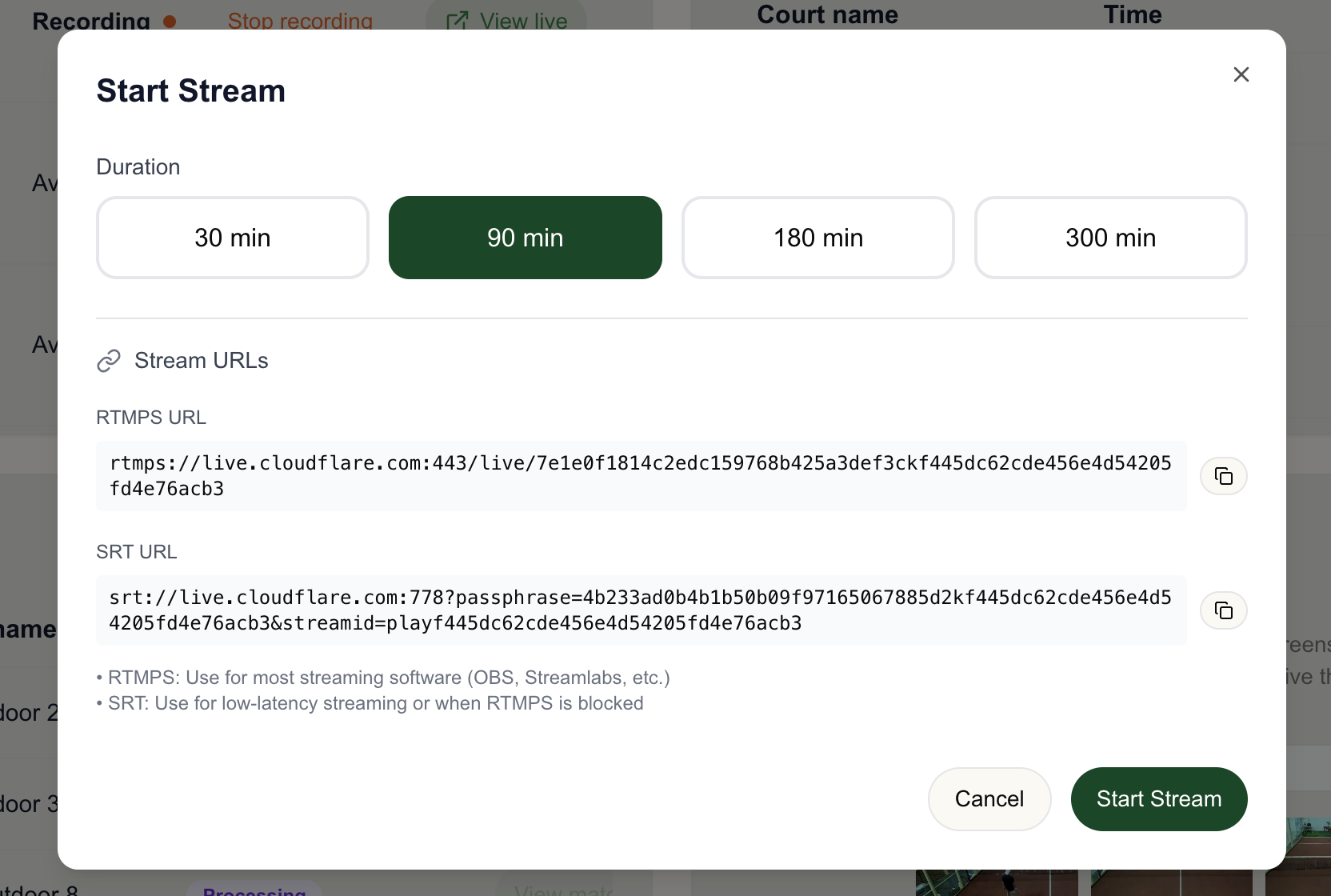
Pick a duration, then copy the RTMPS URL.You'll paste this into OBS in the next steps. Use SRT instead only if your network blocks RTMPS.
Step 3 · Install & set up OBS Studio
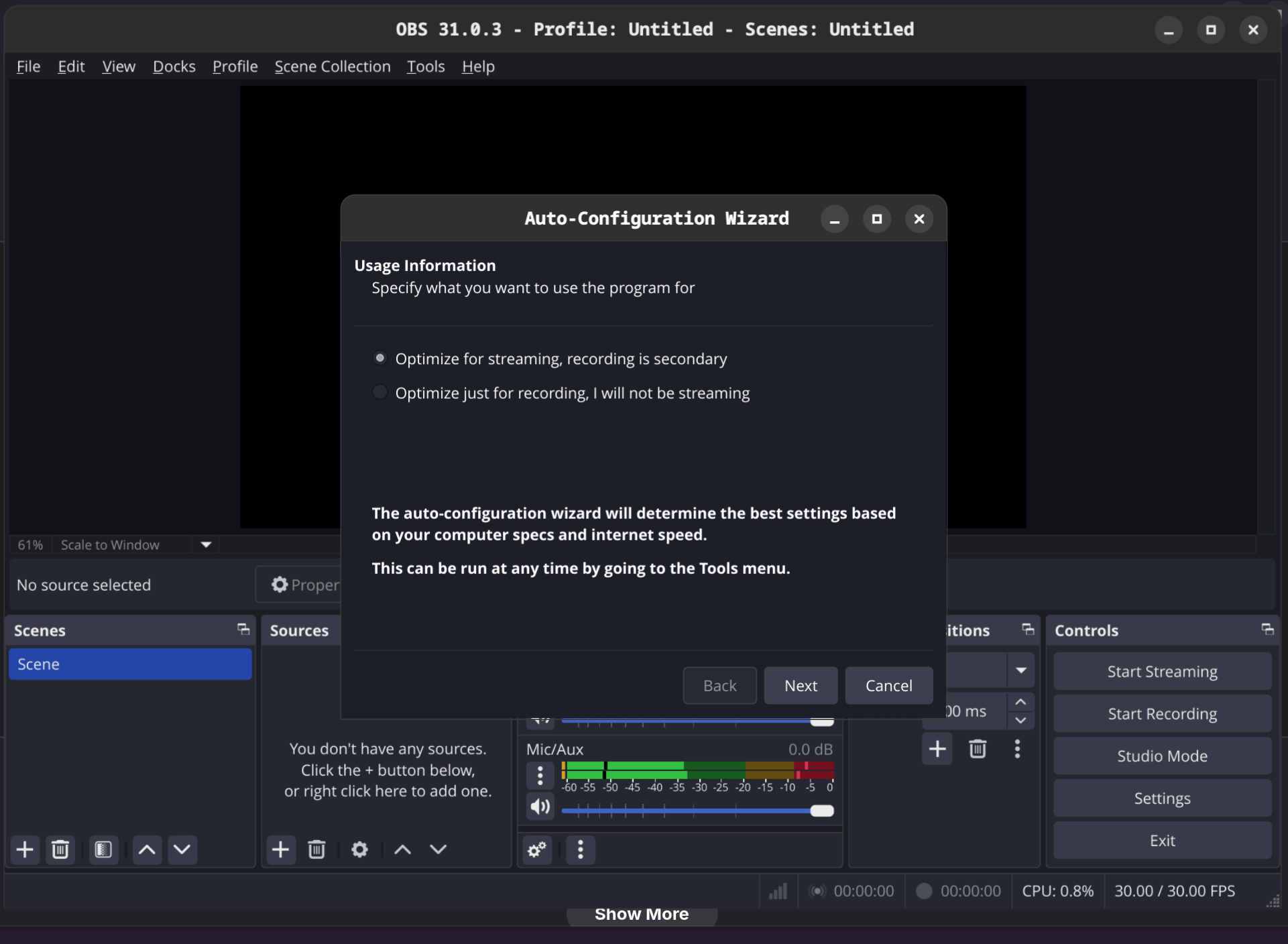
Download OBS from obsproject.com. On first launch the Auto-Configuration Wizard runs — pick Optimize for streaming, recording is secondary and follow the prompts. You can re-run it any time from Tools → Auto-Configuration Wizard.
Step 4 · Add the camera as a Media Source
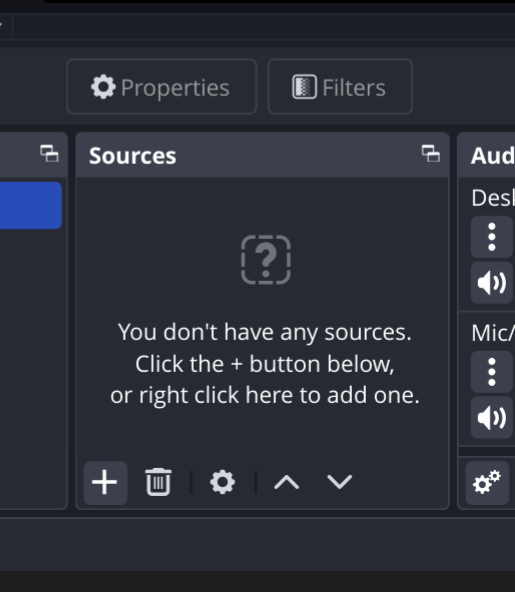
In the Sources panel click the + button.
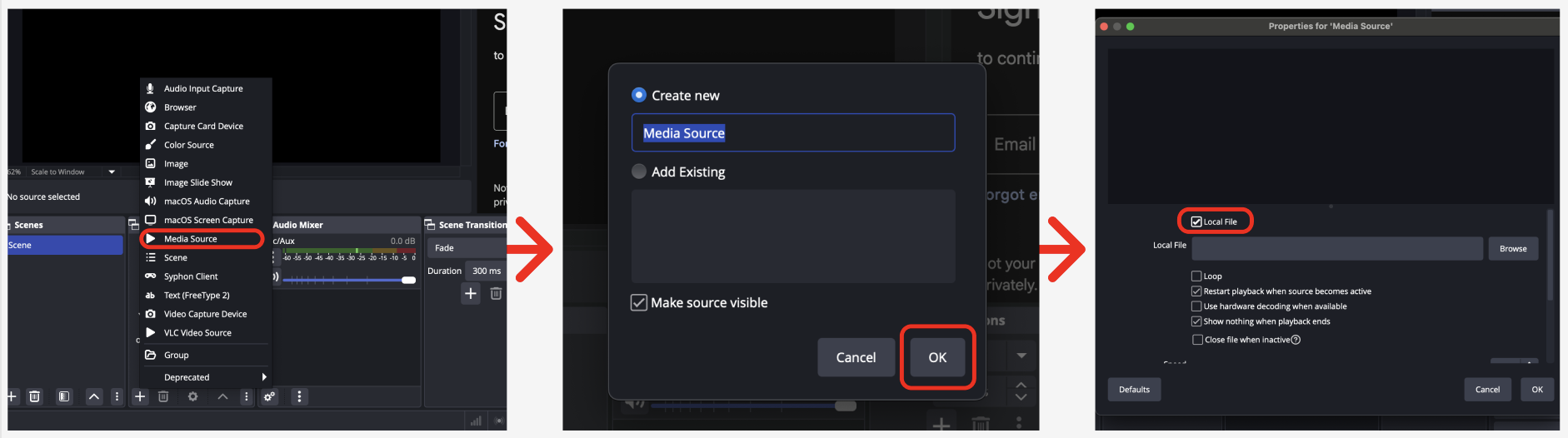
Choose Media Source → Create new → OK.
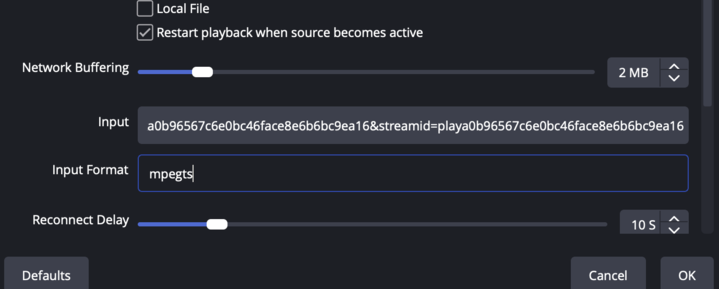
In the Media Source properties:
- Uncheck "Local File"
- Paste the RTMPS URL from the dashboard into Input
- Set Input Format to
mpegts - Tick "Restart playback when source becomes active"
Step 5 · Add a scoreboard (Browser source)
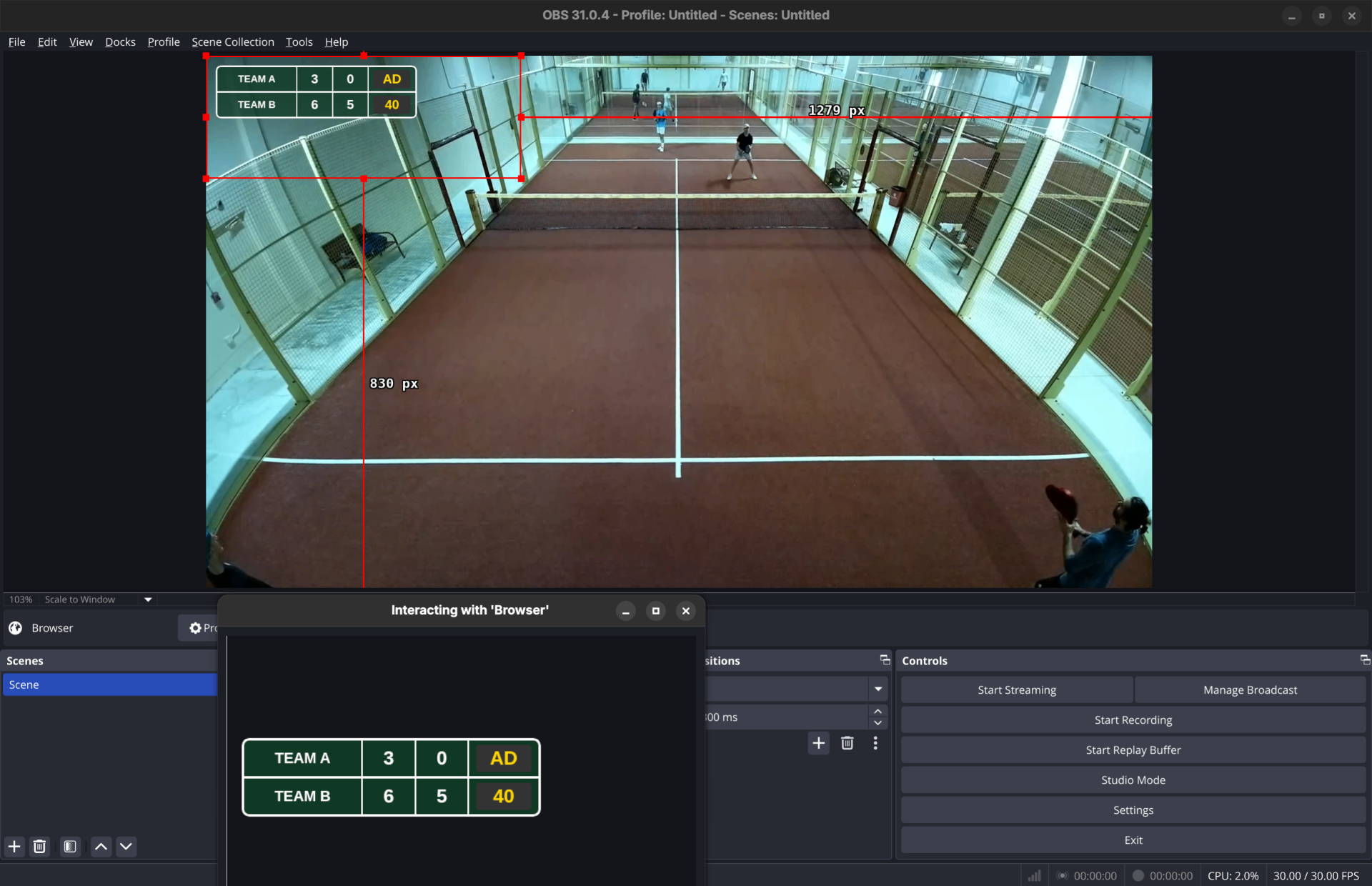
Click + again → Browser. Paste the URL of your scoreboard overlay (any HTML scoreboard works — there are free ones for OBS), then set the size to 1279 × 830 at 30 FPS.
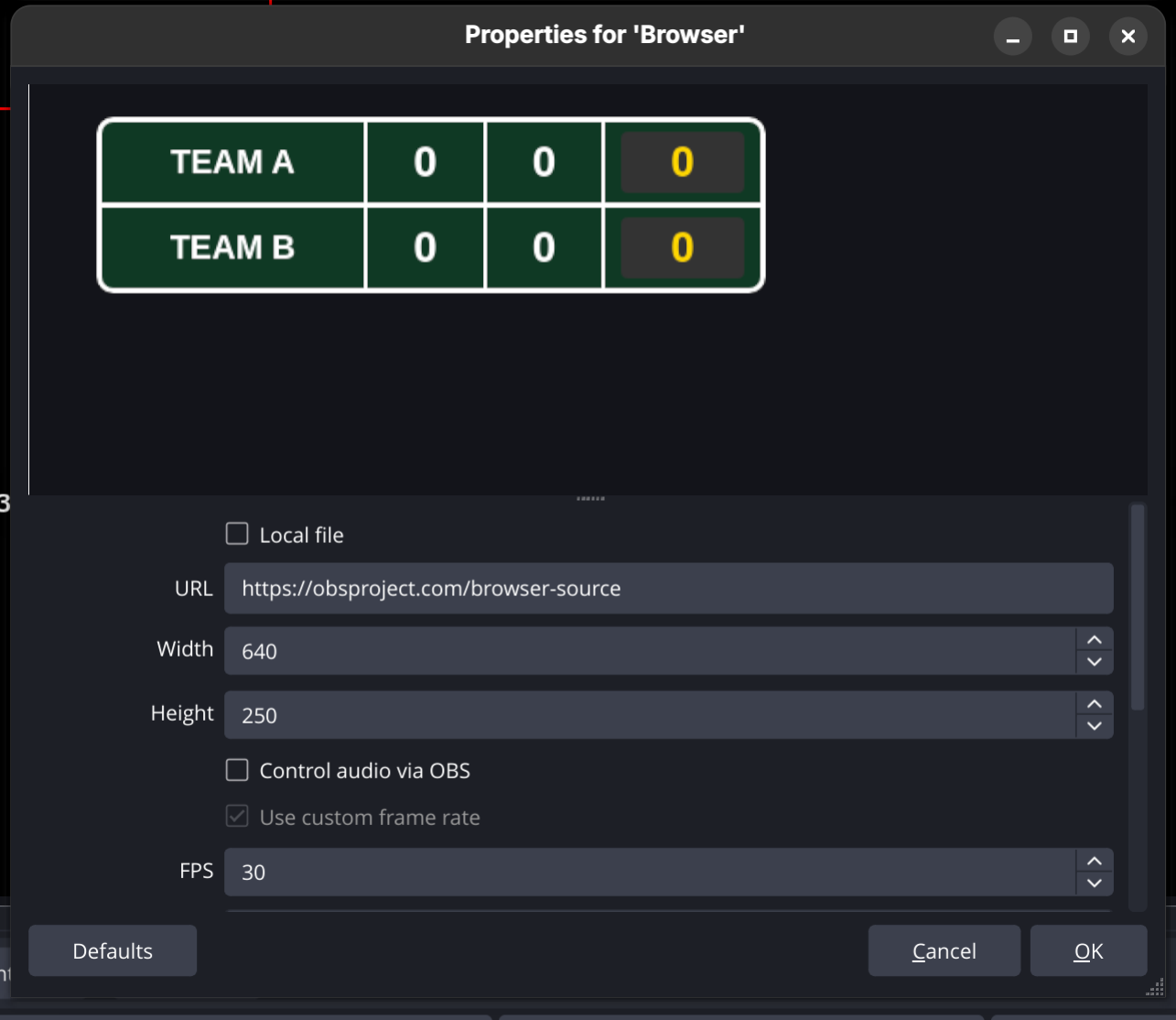
Position the scoreboard over the top-left of the camera feed so it sits above the court without covering the play area.
Step 6 · Control the scoreboard live
Right-click the Browser source in the Sources panel and choose Interact.A small window opens with the scoreboard rendered as an interactive page — click the Team A / Team B buttons each time a point is won and the overlay updates on the live feed in real time.
Most community scoreboards also support keyboard shortcuts while the Interact window is focused (e.g. arrow keys to add / remove points).
Step 7 · Configure your stream destination
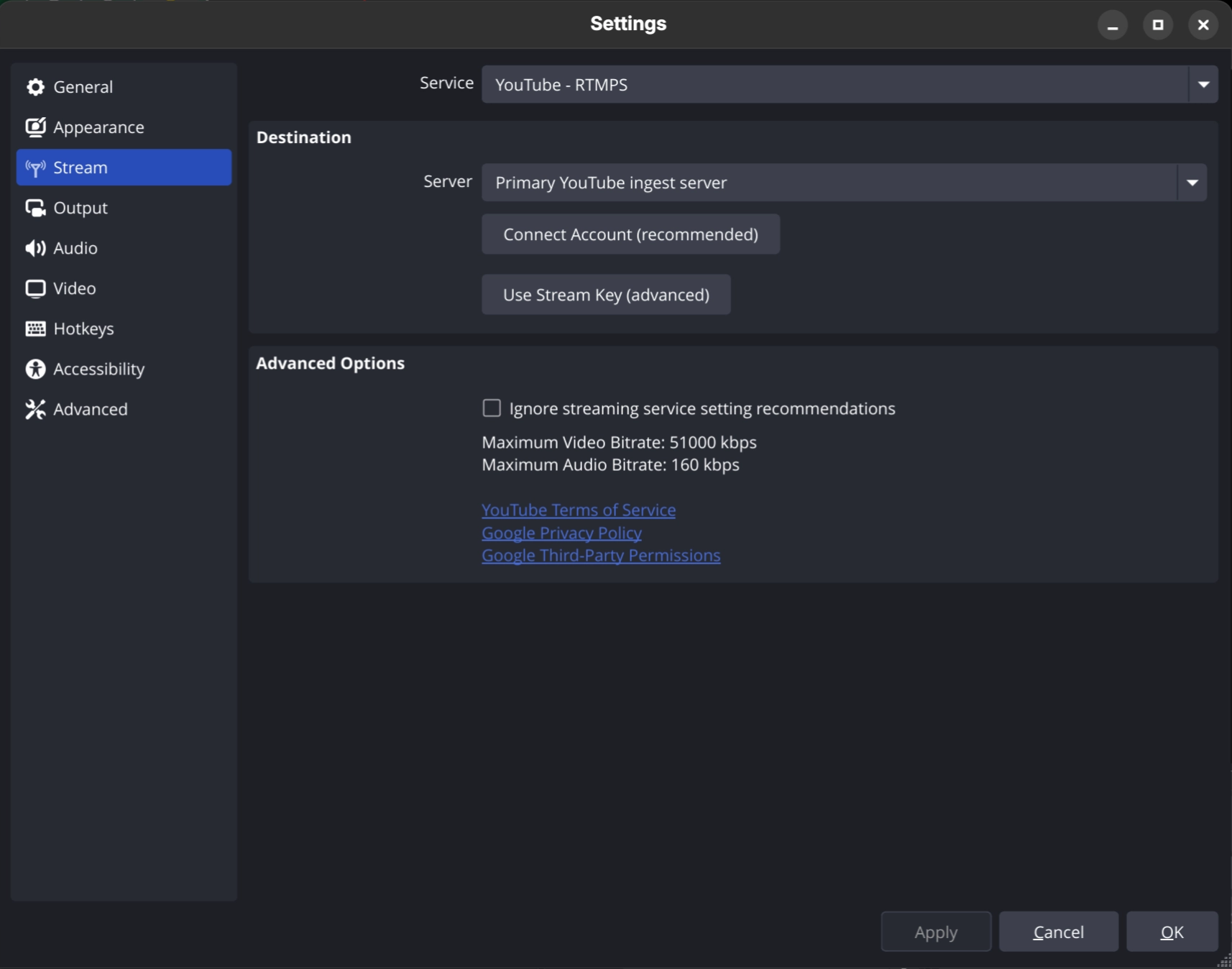
Open Settings → Stream. Pick your platform (e.g. YouTube - RTMPS),then either click Connect Account or paste your stream key via Use Stream Key (advanced).
Step 8 · Audio & commentary
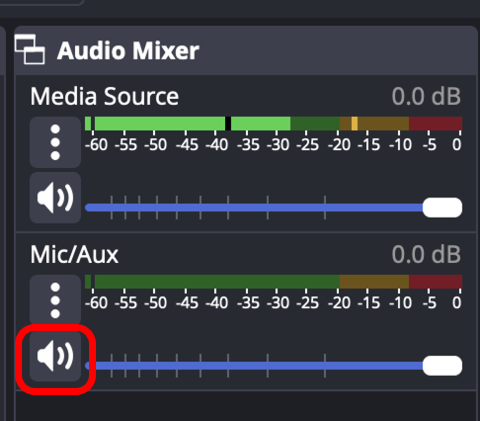
For live commentary, add an Audio Input Capture source for your microphone and balance levels in the Audio Mixer.Keep the commentator's mic a few dB hotter than the court ambience so play-by-play stays intelligible.
Not running commentary? Mute Mic/Aux in the Audio Mixer so club background noise doesn't end up on the broadcast.
Step 9 · Go live
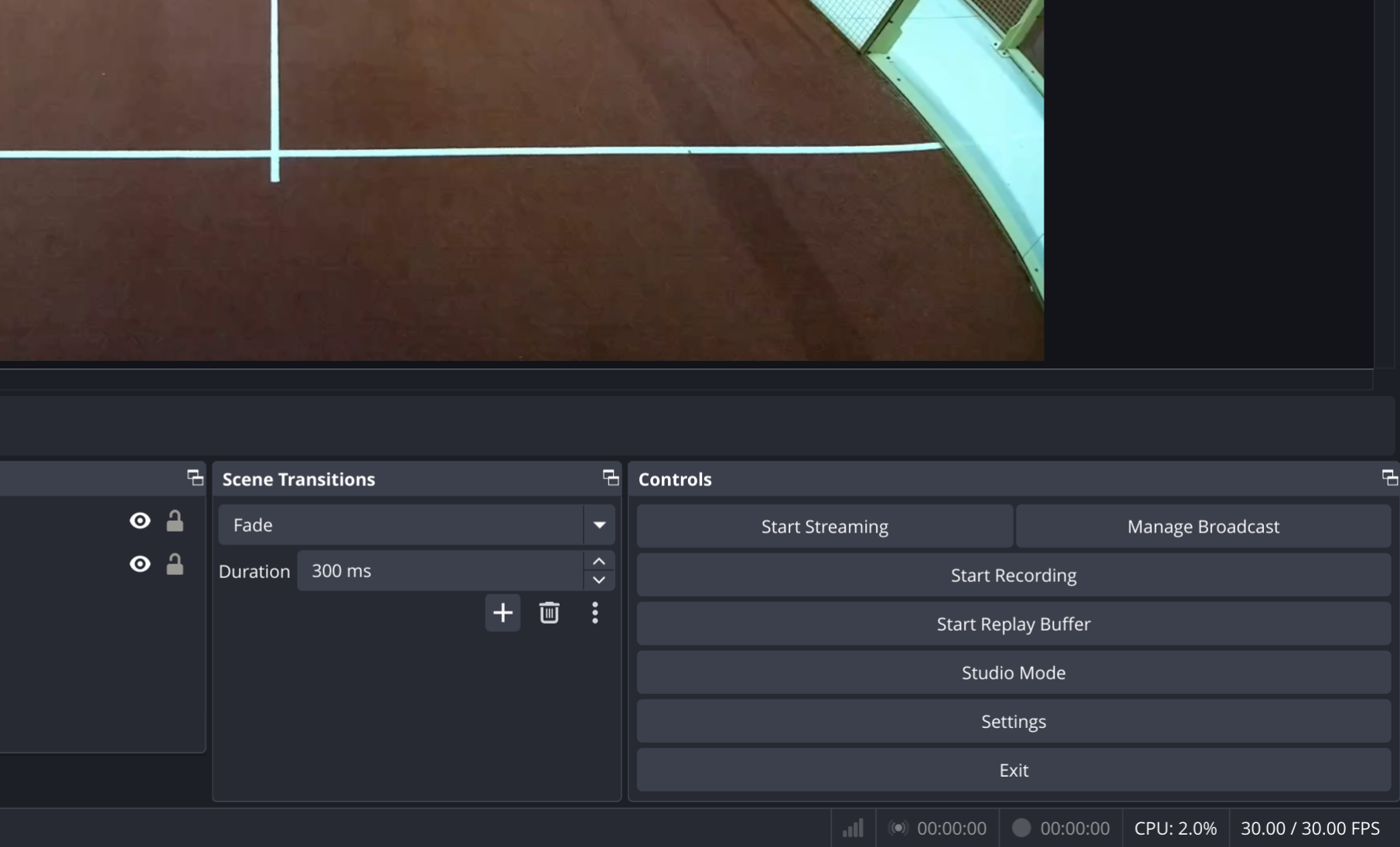
Hit Start Streaming in the OBS Controls panel (bottom right). Your broadcast — Clutch Cam feed + scoreboard + commentary — is now live on YouTube.
Troubleshooting
- Black preview in OBS — double-check the RTMPS URL is pasted exactly and that Input Format is set to
mpegts. - Stream lags or stutters — use a wired internet connection or lower the output bitrate in
Settings → Output. - No commentary audio — confirm the mic is selected in Audio Input Capture and the channel is unmuted in the Audio Mixer.
- Stream ended unexpectedly — the duration you picked in the dashboard ran out. Start a new stream with a longer duration.
- Stream cuts out mid-match — OBS has to stay open and running on the streaming machine for the entire match. Disable sleep / screen lock on the laptop, keep it plugged in, and don't close the OBS window until the match is over.